Creating My First NES Game

For this mini-LD challenge, I decided to try to create a game for the original 8-bit Nintendo Entertainment System (NES). This was the first game console that I ever owned as a kid, so creating a game for it was something that I had always wanted to do.

Unfortunately, to create an NES game, everything has to be written in assembly. When I was at Georgia Tech working on my computer science undergraduate degree, I did have one project where I had to write assembly code for an emulated MIPS system. The emulator was called SPIM (MIPS spelled backwards), and it looks like it is still available for download today. While writing assembly is not completely foreign to me, it definitely is not one of my favorite things to do. However, it was my only option for creating an NES game, and it was a nice refresher since I had not written any assembly code in years.

Getting a 4x4 tile sprite moving around on the screen
Running NES assembler to get a sprite to move on the screen in the NES emulator

The good news is that I found a great series of tutorials on the basics of creating a NES game written by bunnyboy at NintendoAge. He also has a wide variety of NES homebrew games available on his site, and an adapter for sale which allows compiled NES games to be played on actual NES hardware using a flash drive.

I started by working through weeks 1 to 5 of the “Nerdy Nights” tutorials. The first tutorial is the basics of binary and hexadecimal number systems. The second tutorial goes over the architecture of the NES, and provides a barebones example of an NES game with assembly code and example CHR ROM dump. I liked this incremental example approach, which allowed me to just to get something to compile and run, before tackling things like sprites and sounds. I tried a few different NES emulators, but FCEUX seemed to be the one that most people recommended these days. It was also available for download from the Ubuntu software center, so the installation was simple. However, the program that is used to compile the NES assembly code called NESASM3 is only offered as a Windows executable, so I had to install Wine to run it. After the setup was complete, I was successfully able to generate a .NES file, which ran in my NES emulator. However, it only displayed a blank screen, but it didn’t crash which was a start.

In the third tutorial, it goes into the details of the 6502 assembly code, which is the instruction set used by the NES assembler. It has all of the standard operators that you would expect, like “load” and “store” for writing to registers and memory. The NES is a fairly simplistic system, which only has three registers which are the Accumulator, Register X, and Register Y. The instruction set also has simple math functions like “add” and “subtract”, and control operators like “jump” and “branch”. The example of this lesson gave enough to get started to change the color of the screen based on the selected palette value. I tested by changing the screen color to different combinations of red, green, and blue by modifying the binary code of the byte which controls the screen color.

The fourth tutorial made things a little more interesting, as it taught me how to display a sprite to the screen and change its colors by modifying the color palette values. The color code chart at the top of the page was a very helpful reference. The fifth tutorial shows how to display even more sprites, and how to move them around on the screen using the controller. The example code just shows how to detect input from the A and B buttons, so I extended that code to detect all buttons on the NES controller. The test for the other buttons are just detected by additional “loads” from the from the address of the controller port ($4016). It also only moved the sprite in the left and right direction, so by writing to the sprite’s Y memory location, I was able to make the sprite move vertically when the up and down buttons are pressed on the virtual D-pad. The example only moved one “tile” of the sprite, so I extended the assembly code so that it moved all four tiles together.

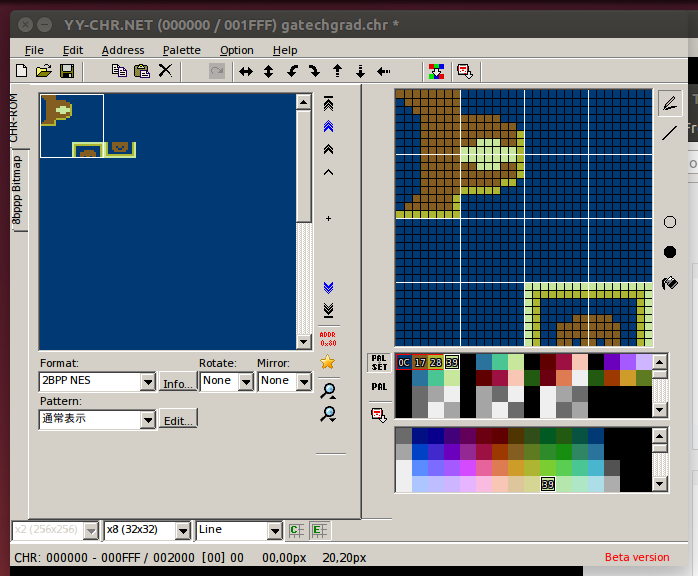
In order to make the sprites for my game, I used a program called YY-CHR. It is another Windows executable, but it also runs well under Ubuntu using Wine. The only issue that I encountered was that I was not able to create a bitmap in Gimp, and then copy and paste it into YY-CHR. Therefore, I created my own “hand drawn” smiley face sprite, which is made up of four 8×8 pixel tiles.

I quickly discovered that writing everything in assembly was going to be a real pain. Therefore, I started writing a simple script that would read some parameters out of a file. Since this is going to be simple, I decided to write the script in Ruby. First, I took the 6502 assembly that I wrote and broke it into five pieces: the header (which doesn’t change), controls (player input), palette, sprites, and footer (also doesn’t change). I put each section of assembly into its own text file, and the main nesc.rb script just reads the contents of those files, and then calls NESASM3.exe at the end. I tested my script, and it successfully compiled an .NES image which I could play in my FCEUX emulator.

However, that isn’t very interesting since it always just compiles into the same game. As a starting point, I created a game.xml file, and defined four colors which define the four colors of the current palette. In the included nes_palette.rb file, I started defining colors based on the tutorial table, and stored those color constants and the corresponding hex values into a Hash. Then, in another script which reads the game.xml file using REXML and XPath, I stored the user’s defined palette colors in array. Then the palette code just looks up those values in the Hash to get the correct hex values to write palette data using the .db directive. Finally, I added a <palette> tag to contain these <color> elements.


Changing the palette colors of a sprite using user defined values in an XML file


I expanded my XML file specification format by adding a <player> tag for player attributes. The first player attribute I added was <speed>, which controls how fast the player moves around on the screen. This is currently a hexadecimal value, which is either added or subtracted (ADC / SBC) from from the x and y memory locations of the player’s tiles. In my original code, it only moved one of the player’s tiles, however with my Ruby compiler script I was able to create a simple loop to apply the add or subtract to each tile in the player sprite. In my user input code, I made a hash table of the user defined values so that it can be passed around to each of the functions. One issue I had was sometimes the tiles would not move at the correct speed. I found that this was because I was not clearing the carry flag. CLC must be called before every ADC, and SEC must be called before every SBC.

Creating a simple sprite in YY-CHR

Now that I had a way to display a sprite to the screen, I needed a way to change the sprite displayed on the screen. I created a simple rocketship sprite which is four tiles in YY-CHR and saved it to gatechgrad.chr. In my game.xml file, I created a new tag element called <spritesheet>, which holds the name of the CHR file containing the sprites to use for the game. I updated my nesc_userinput.rb script to store this value into the userOptions hash table, which is passed to the new nesc_footer.rb which generates the 6502 assembly to read the data from that CHR file. The NESASM3 assembler will throw a compile time error if the CHR file name is invalid.

While making these updates, I created a Makefile which simply recompiles everything (ruby nesc.rb; wine NESASM3 temp.asm) whenever the game.xml file is updated.

game.xml which defines various properties of the NES game

In the game.xml file, I added a new <sprite> tag inside of the <player> tags, and the <sprite> tag contains multiple <tile> tags which have “row” and “col” as attributes and the tile number (in hexadecimal) as text. I updated the nesc_userinput.rb again to load all of these values into the user option hash table. That data then gets used by the nesc_sprites.rb file to write the assembly for the sprite data. After this was completed, I was successfully able to change which tiles composed the player sprite through the game.xml file. It is interesting that most sprites for NES games use sequential tiles, where the head may be tiles 0 and 1, body 2 and 3, and feet 4 and 5. This makes the reads sequential, but it is more difficult to edit a sprite sheet that way since the head, body, and feet are all of the same tile row. For my game, I just specified 0 and 1 ($00 and $01) as the top part of my ship and 16 and 17 ($10 and $11) as the bottom, that way the sprite is easily editable in the sprite sheet.

The next step is to get the ship shooting. I added a new bullet tile to the spritesheet using YY-CHR. In the nes_sprites.rb script, I added a new line to load the bullet sprite. Then I increased the loop counter in the header to read the new sprite by increasing the CPX value to #$30. This should actually load 12 tiles, since each tile is defined by 4 bytes (x, attributes, tile index, y). In the controller code, under the ReadA: label, which is executed when the A button is pressed, I set bullet’s x and y location values to the position of the spaceship. I used the values of the first spaceship tile, to make things simple for now. After the control handling code, I added a section to add (CLC/ADC) the bullet speed to the x position of the bullet. Now, the bullet’s position will fly from left to right on the screen. In the game.xml file, I added a <bullet> tag which contains <speed> containing the speed of the bullet in hexadecimal, just like the player speed. This value is read and used to determine the bullet speed in the game.

Unfortunately, when the bullet reaches the right edge of the screen, it will loop back to the left side. Also, if the A button is repeatedly pressed, the one bullet will reset back to the location of the spaceship. I created a variable in the assembly code to hold the “alive” flag. When the A button is pressed, I load a 1 (LDA #$01) and store it in the alive flag. In the UpdateBullets section, I load the bullet alive flag and compare it with 1 (CMP #$01) and jump to the end of the section if it is not equal (BNE). This will make the bullet stop if it is not alive. Using this reference I learned how to check if a value is greater than or less than a number by using the BCC and BCS (“branch carry clear” and “branch carry set”) instructions. Using BCC, if the bullet’s x location is less than 240 (#$F0) then it will jump to the end of the section, otherwise it will set the alive flag to zero. I used 240 instead of 255, due to the values looping back around to zero when value exceeds the 255 limit for a byte. As long as the bullet speed is less than 15 there should be no problems. There are techniques for checking if the summed value exceeds 255, which is used for 16-bit numbers, so I will investigate that later. To fix the other bullet position reset problem when A is repeatedly pressed, after the A button is read I simply loaded the bullet alive flag, compared it with one and jumped to the end if it is equal.

Displaying player ship, missile, enemy ship, and score on the game screen.

The next step was to get an enemy on the screen. I used YY-CHR to create a new enemy ship sprite on my spritesheet, which is another four tile sprite. I added a new <enemy> tag to my XML file, which contains all of the properties of the enemy. In the Ruby code, I added an array to hold all of the enemies, and an Enemy class which contains the memory locations of the X and Y position of the enemy. I also defined an “alive” flag variable for the enemy, so that I can set it to dead when it is destroyed. In the future, I could also add a life value, if the enemy takes multiple hits to be killed. To get the enemy moving, I just simply keep subtracting the ship’s speed value to the x location variable, so the enemy will continually keep moving toward the left side of the screen. This isn’t really impressive, but at least it’s moving which gives the game a bit of a challenge. When the ship’s “alive” flag is set to zero (#$00), then the enemy ship stops moving.

Displaying text in the game is done by writing the text tiles to background name table. For my spritesheet, “0” starts at tile $00 and goes up to “9” at tile $09. The letter “A” starts at tile $0A and goes up to “Z” at $23. The letter mappings can be seen in the PPU viewer of FCEUX. Using the technique explained in the tutorial, I was able to display the score up to six digits at the top of the screen. I created a Hash in the script to map all of the letters to the equivalent tile numbers. It may be possible to write a function to do this conversion, but I will leave that to do later.

I separated all of the object code into its own Ruby script, which held the memory locations of all of the tiles for each of the objects. The update code for each of the objects was also moved to another script containing update subroutines. In the update script, the locations of the tiles are set based on the location of the object, plus an offset which is added based on the tile’s row and column in the sprite.

Next, I added collision detection between the bullet and the enemy ship. This was accomplished through a series of CMP, BCS, and BCC statements which check to see if the bullet’s x and y position are within the enemy sprite. I subtracted 4 from the left and top bounds of the enemy ship, so that a collision is detected when the bullet’s x or y is equal to the enemy ship’s x or y, since there is no “greater than or equal to” operator. When the bullet collides with the enemy ship, the bullet alive variable is set to #$00. Then JSR is called to execute the code to increment the player’s score. This collision code just checks to see if the bullet’s x, y location is inside the enemy ship rectangle to make things simple. Modifying the code to do rectangle/rectangle would complicate things too much for this simple game.

The next step was to get a simple sound to play when a bullet is shot, which I got working by following this tutorial. This just plays a simple beep, and I modified it so that it doesn’t continually play by enabling the length counter and setting it to 0001.

Two enemies on screen with six digit score

I added a second enemy by adding to the enemy array defined in the object script, and set the appropriate address values for the x, y, and tile index values. For now, I just duplicated all of the bullet collision and enemy movement code for the second enemy. I added a new “gametime” varaible that gets incremented on every NMI interrupt break. When the gametime variable is equal to #$FF, then both enemies are set to alive and their y position are set back to a position on screen. This gives the appearance of new enemy ships spawning.

In order to have a game over state, I added a new variable to track the player’s lives. Whenever the player’s ship collides with an enemy ship, a new subroutine is called which subtracts one from the player’s lives, and set the game state to “GAME OVER” if the number of lives are equal to zero.

Using my sprite editor, I created a title graphic for the game. However, I quickly found that it isn’t so easy to change all of the background tiles on the screen at once. I tried a few things, but I had little luck. After digging around on some forums, I found that it really isn’t possible to update the entire background in one update, like updating the screen in modern game programming environments. One poster said that it’s only possible to update 3 rows or columns in one update, or the game will start to slow down. For now I’m leaving the title screen out, but I’m hoping to eventually get it working in the game.

spacedude05
Title screen… to be added… hopefully.

Overall, I’m happy with what I was able to accomplish in a relatively short period of time. I’ve decided to give a 20 minute Lightning Talk on the process of creating a NES game using 6502 assembly at the CodeStock technical conference in Knoxville next month (July 2014).

Download and play Space Dude here

Resources:
Nerdy Nights at NintendoAge

NesDev : Wiki, NES Coding Competition, NES Tech FAQ

Programming M.C. Kids

Archaeology – Developer log

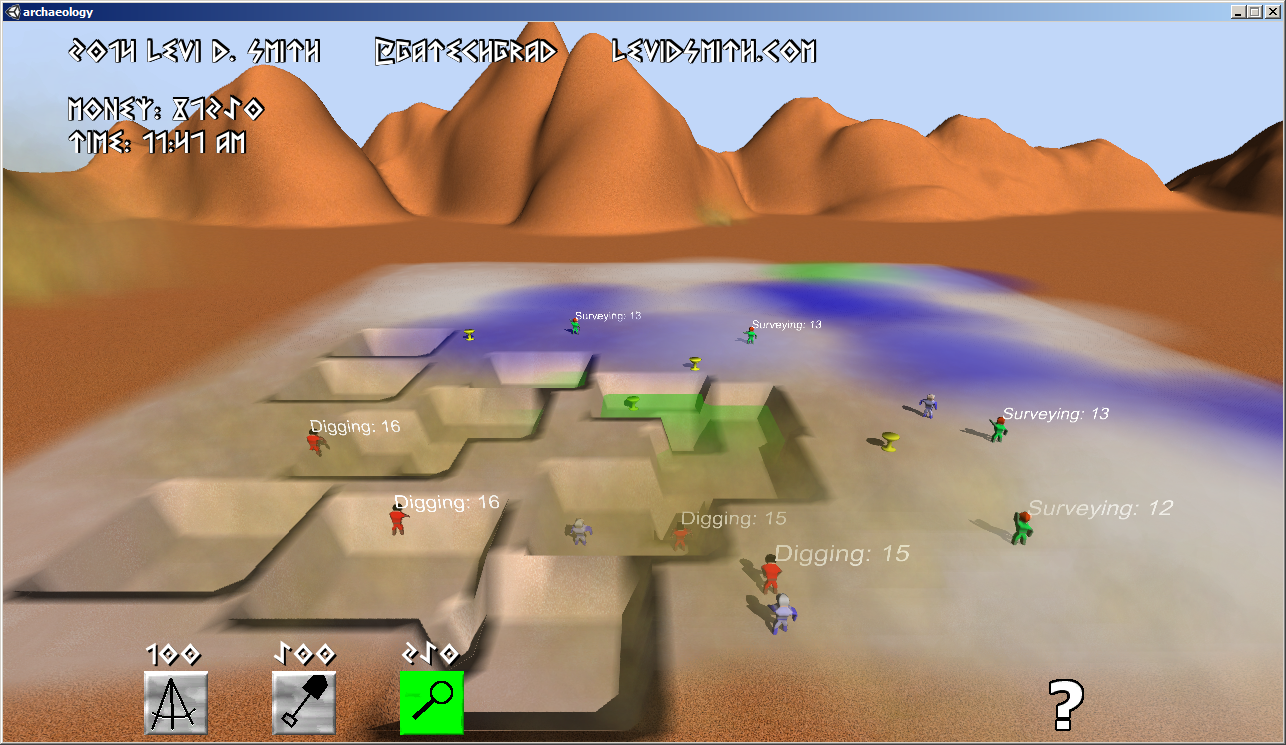
With the weather being so nice outside last weekend, it was really hard to get psyched about sitting in front of the computer all weekend to make a game. However, I’ve participated in every Ludum Dare and mini-Ludum Dare since #26, so I felt compelled to make something even if it was really simple. I really didn’t have any good ideas for “Beneath the Surface”, so I decided to create a treasure hunting game. For my LD29 warmup, I made a simple MineSweeper game, so I thought it would be neat to expand on the basic concepts of that game. Instead of avoiding mines, you are trying to find buried treasure in a three dimensional world.

At first I just got the hidden treasure pieces to randomly populate on the game world, which are the items you must find. The digging unit was the first that I created, which I renamed “excavator” since it sounds fancier. He just uncovers whatever is hidden at his location. However, randomly adding excavators to the map really didn’t seem challenging.

Then I got the idea to allow the player to “ping” the map to get a general idea of the treasure location. This reminded me of the news stories about crews using scanning devices to find the missing Malaysian airplane off the coast of Australia. I originally wanted to have a heat map showing the pinged locations and the amount of treasure in the area. However, I had to settle for just colored circle areas on the ground representing the amount of treasure in the area. It was fitting that this is very similar to the job that an archaeological surveyor does, so I created a “surveyor” unit specifically for this job.

Finally, an excavator only knows about digging, and only a true expert would know the value of a lost treasure. Therefore, I created the “appraiser” unit to determine the value of each discovered treasure. The inspiration of this unit came from shows like Pawn Stars and American Pickers, where they will call in an expert to determine the value of a given “piece”.

I had plenty of more ideas which had to be cut. There was going to be rocks on the game world and an explosives expert unit which would destroy the rocks so that the excavator could dig. I also did a little research on some of the most famous lost archaeological artifacts from around the world, which I wanted to include in my game. However, I just had enough time to include one treasure piece which looks like a golden chalice. I also got suggestions to add adversaries like spiders, floods, and diseases which could eliminate units, but I didn’t have time to include any of those.

For this game, I wasn’t too worried about creating the best looking game ever. In my previous Ludum Dare entries, I spent much more time polishing, but it never seemed to have much of an impact on my ratings. I’m much less concerned about ratings this time, and more focused on learning new things. For example, this time I got fully functional map controls working with the mouse, including zoom in/out with the mouse wheel. I figured out how to create a unit on the game world at the position where the player clicks. When implementing that feature, I got stuck when trying to cast a ray from the camera to the plane on the ground. For some reason, none of the camera API calls were working. I thought my Unity libraries may have gotten hosed or there was some issue with the compiler. After taking a break and coming back to it, I realized that on the title screen I had created a script called “Camera” for moving the title camera. All calls to camera were referring to that script, which explained why I could not access any of the Camera API methods. Changing the name of my title camera script resolved that problem.

Another issue was with the appraisers. Since the player could add an appraiser at any location in the world, the appraiser would need to walk to the nearest treasure. I did learn that I can access all of the Treasure objects by tagging them with “treasure” and then calling the GameObject.GetObjectsWithTag method. This also resolves a Unity problem that I was never able to figure out, which is referencing game world objects (in the Hierarchy) from a Prefab.

I will admit that there are some things that I’ve done so many times when creating a Unity game, that it just isn’t fun anymore. One of those things is creating human models. Unfortunately, in the 48 hour compo pre-existing assets are not allowed, so I had to create a human model from scratch again. I guess it’s good for the Blender practice. I used one model for the three different units, but used a different texture and animation for each unit. I originally started by creating the excavator with a shovel, but I found that it was going to be way too difficult to animate the character with the object, so the shovel was removed.

In the end, I got most of the basics working but it really didn’t look like a completed game. There was a bug which sometimes prevented the appraisers from collecting treasures. After looking into it some more, I found that this was because I thought that code execution stopped when Destroy was called on a gameObject. Actually, the script attached to a gameObject will continue until the Update method finishes. In my code, the appraiser was targeting the next treasure after Destroy was called, so that no other appraisers could target the treasure and appraise it. That was a simple one line fix to solve.

The biggest mistake that I think I made in this Ludum Dare was spending to much time basically re-inventing the wheel. I really don’t like the default Unity GUI buttons, so I decided to make my own. However, the process of making custom buttons is not a trivial one and is time consuming. Before the next Ludum Dare, I would like to have my own personal Unity library for things like graphical toggle buttons, menus, camera controls, font outlines, and dialog boxes. That way I could spend more time making the game, rather than trying to get a button to illuminate.

I liked the concept of this game, because I haven’t seen it done before. Therefore, I spent a little time this weekend making some changes for the Post-Compo version. I looked into how to modify the Unity terrain at run-time, so now when the excavators dig, it actually makes a dip in the terrain which is what I had originally envisioned. The biggest problem I ran into is that the terrain map starts at 0 height, so there was no way to make the terrain go any lower. Setting the base terrain level to 300 fixed this problem, and I just subtract 0.005 from the terrain height where the excavator digs. It took me a little while to figure out that the height array is from 0 to 1, not actual world units.

Overall, I’m happy with the results of this game. It definitely isn’t as visually impressive as my previous Ludum Dare entries, but I think the gameplay is much deeper. Adding adversaries to the game would probably make it much more exciting. If there is enough interest, I would be willing to port it to other platforms, since I think it would make a great mobile game. Online features such as leaderboards would also be nice to have. If I ever felt really ambitious, I could have an online server containing treasure data for everyone playing the game, so everyone is excavating from the same online world.


Videos

My Raspberry Pi Arcade

Overview

For some time, I’ve been hearing about the many things that can be created with the Raspberry Pi.  A few weeks ago, I purchased the Model B from the Amazon store for about $39.  After three days it arrived on my doorstep.  I haven’t had the time to do anything with it, but today I decided to get it running.  This is not a device that you can plugin and start using immediately.  I will cover the process that I went through to get my Raspberry Pi device running.  You can do many things with the Raspberry Pi, and I have chosen to create a simple arcade system as described by this article on Adafruit.

Raspberry Pi Model B

Hardware

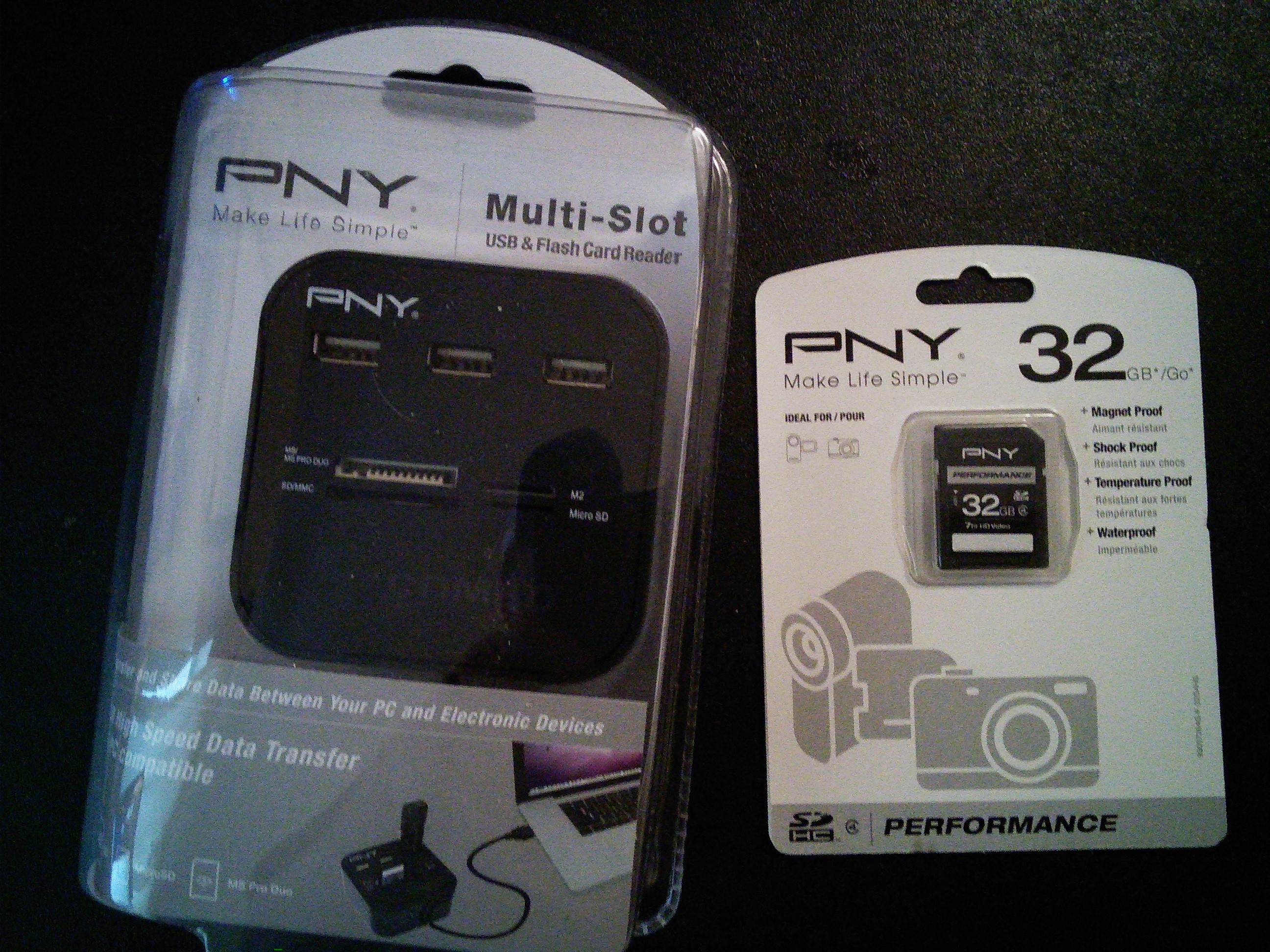
First, you will need an SD card and a method for writing an operating system image file to the card.  A 32 GB SD card and SD card reader from Wal-Mart set me back about $55.  These could probably be found cheaper online, but I was willing to pay a few extra dollars to walk out of the store with it in my hands today.  Since I will be emulating games, I needed to ensure that my card had enough storage to hold the game image files.


Don't forget the SD card and reader
Don’t forget the SD card and reader

A micro-USB power supply is also required, which does not come with the Raspberry Pi.  I will be using my phone charger, which is capable of 5.0 volts and 2.1 amps, which is sufficient for the Raspberry Pi.

Be sure that your Micro-USB power supply is capable of supplying 5 volts

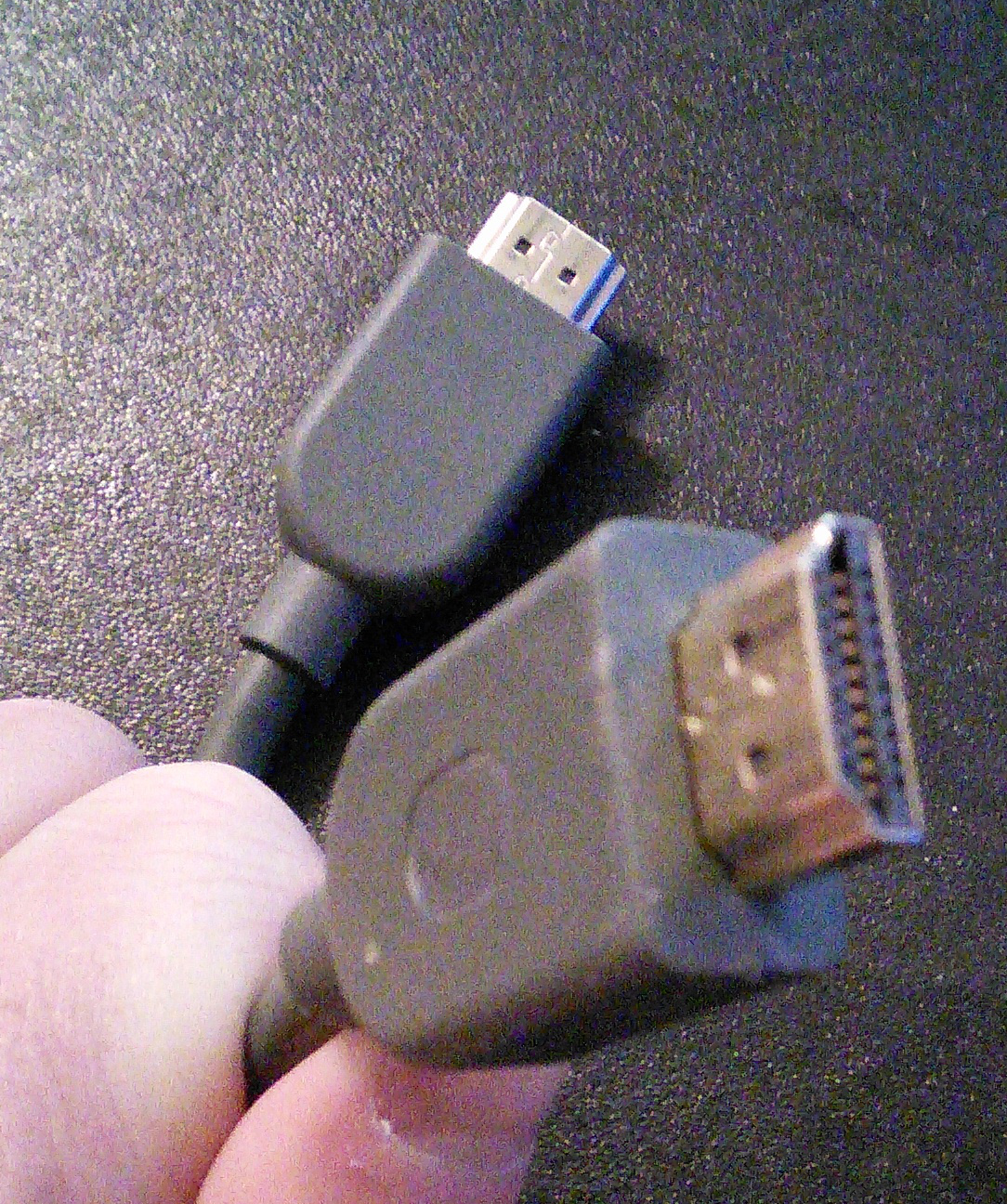
An HDMI cable is required as well, for connecting your Raspberri Pi to your display device.  I am using the HDMI cable from my XBox 360.

HDMI cable is required for connecting you Raspberri Pi to the display device


Finally, a USB keyboard and USB mouse will be needed for interacting with the Raspberri Pi.


Any modern USB keyboard and USB mouse should work

After getting the necessary hardware, the operating system for the Raspberry Pi will need to be downloaded.  The Raspberry Pi download site offers many options, and I chose to go with Raspbian.  This distribution has been recommend to me by others,  and it is also the recommended OS from the Adafruit article.  I downloaded the 2014-01-07 version of the Rasbian “Debian Wheezy” software, which was 780 MB in size.

External SD Card Reader


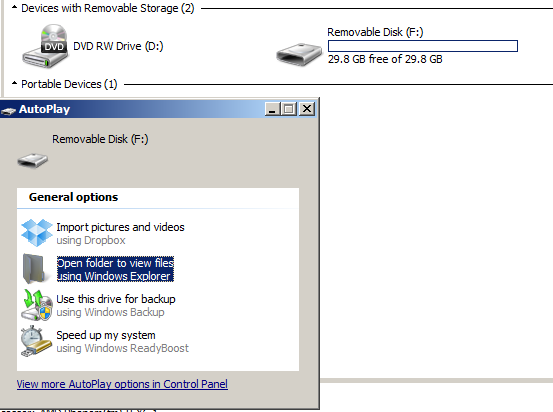
After connecting my SD card reader to my desktop PC using the USB cable, Windows automatically installed the appropriate drivers for the SD card reader.  When I inserted the SD card into the reader, it recognized the card and opened a dialog window to view the contents of the SD card.

new_device


 Software

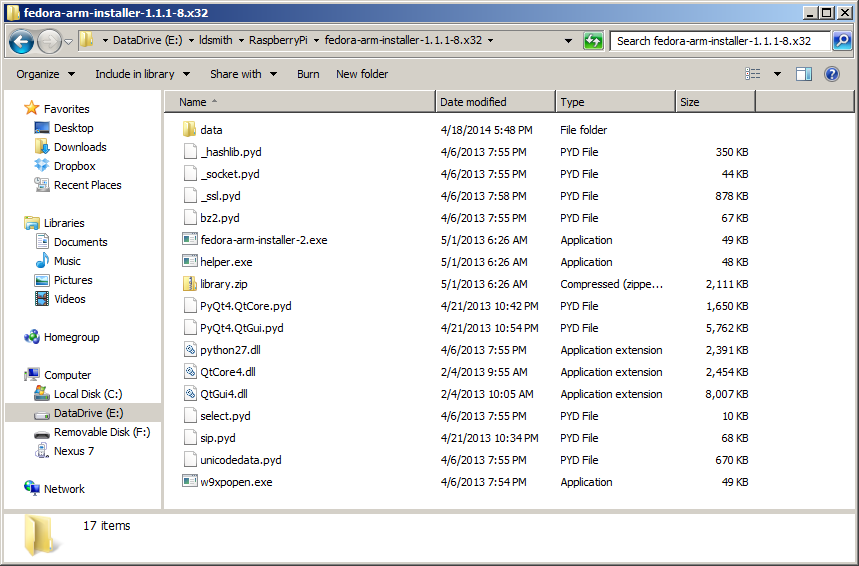
In order to install the Raspbian operating system on the SD card, I downloaded the Fedora ARM Installer, which is a 10 MB zip file.  I created a “RaspberryPi” folder on my desktop system, and extracted the contents of the Fedora ARM installer to that folder.

Extracted contents of Fedora ARM Installer

To run this application, you MUST right click the fedora-arm-installer-2.exe file and select “Run as administrator”.  The application will run without administrator privileges, but it will not be able to detect your SD card device.  If prompts for running DiskPart are displayed, then it is not running as administrator.

fedora_arm_admin
Don’t forget to run as administrator

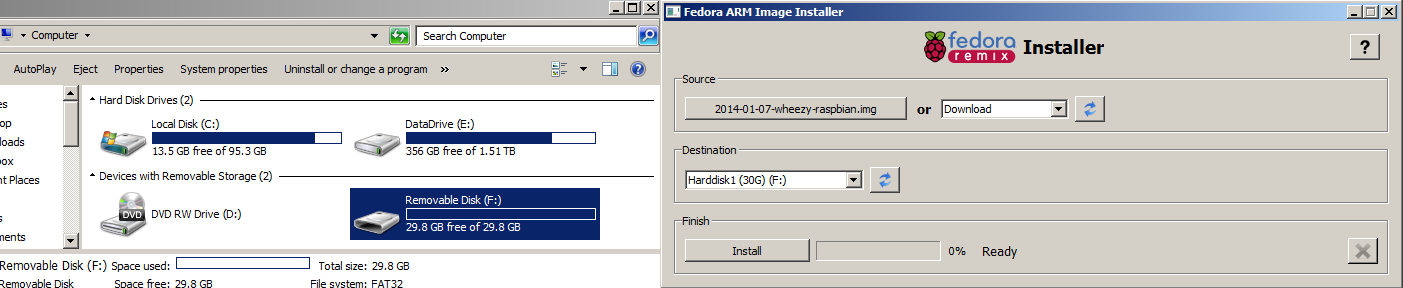
After the program starts, the user interface will display.  Answering yes will allow it to make the necessary changes to install the operating system image on the SD card.  Next, the Raspbian zip package was extracted into my RaspberryPi folder.  After it was extracted, there was one file named 2014-01-07-wheezy-raspbian.img in the folder.  I used that file as the “Source” in the Fedora ARM Image Installer.  Next, I selected the SD card drive as the Destination.  The file size in parenthesis should roughly match the size of the SD card.  In my case, my SD card is 32 GB and the device display in the Fedora ARM installer shows 30 G.  The device description in my case displayed “Harddisk1”, which is not important.  It is important that the drive letter (F: in my case) matches the drive letter of the SD card device.  If it doesn’t match, then STOP and select the correct device or you could risk formatting your hard disk and losing all of your data.  When I ran the Fedora ARM installer it didn’t give me the option of selecting my local desktop drives (such as C:) as the Destination, so it may have some precautions built in to prevent it from reimaging your local drives, but you should still double check to verify that you are writing to the correct destination.

fedora_arm_interface2

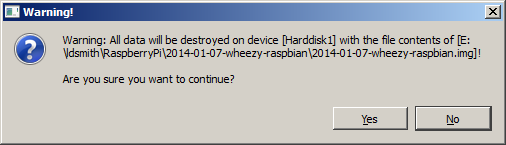
After I verified that everything was correct, I pressed the Install button to write the image to the SD card.  When the warning message displayed, I confirmed that it was the correct device and selected “Yes” to write the Raspbian image to the SD card.


Be sure that you are overwriting the correct device!

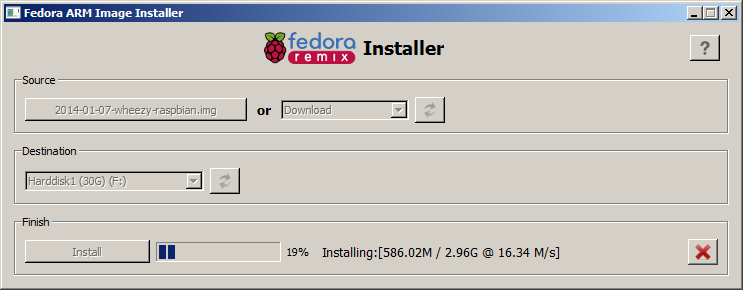
Writing the image to the SD card took a few minutes.


Writing the image to the SD card takes some time.

Once the “Install Complete” message displays, the imaging is complete and the SD card can be removed from the card reader.

Booting up the Raspberry Pi

Insert the SD card into the slot in the back of the Raspberry Pi.


Slide SD card into back of Raspberry Pi

Connect the keyboard, mouse, and HDMI to the front of the Raspberry Pi.  Finally connect and plugin the micro USB cable to power on the Raspberry Pi.

Connect the keyboard, mouse, HDMI, and micro USB power supply


Once powered, the screen should display the Raspberry Pi boot up sequence.

Raspberry Pi Booting Up


After the Raspberry Pi has booted, the raspi-config menu will display.  First, I selected “Expand Filesystem”.


raspi-config main menu

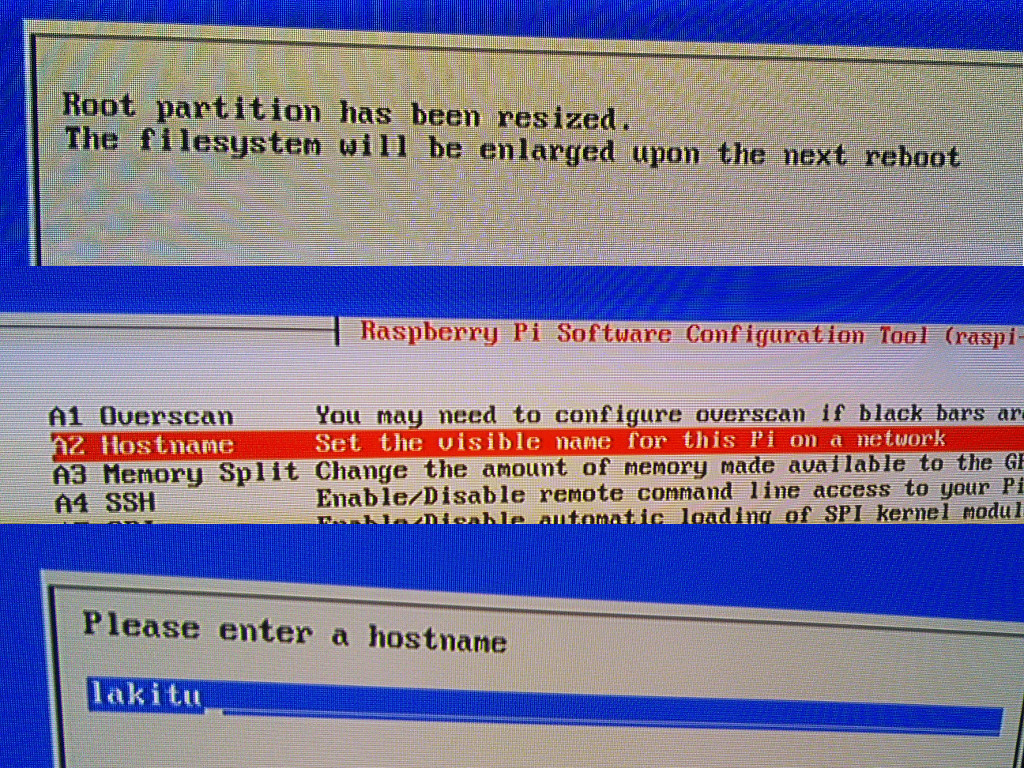
A message about the root partition being resized and enlarged on the next reboot displayed.  To give the Raspberry Pi device a unique name on the network, I selected 8  Advanced Options, then selected A2 Hostname.  I was then able to enter a new name for the device.

hostname

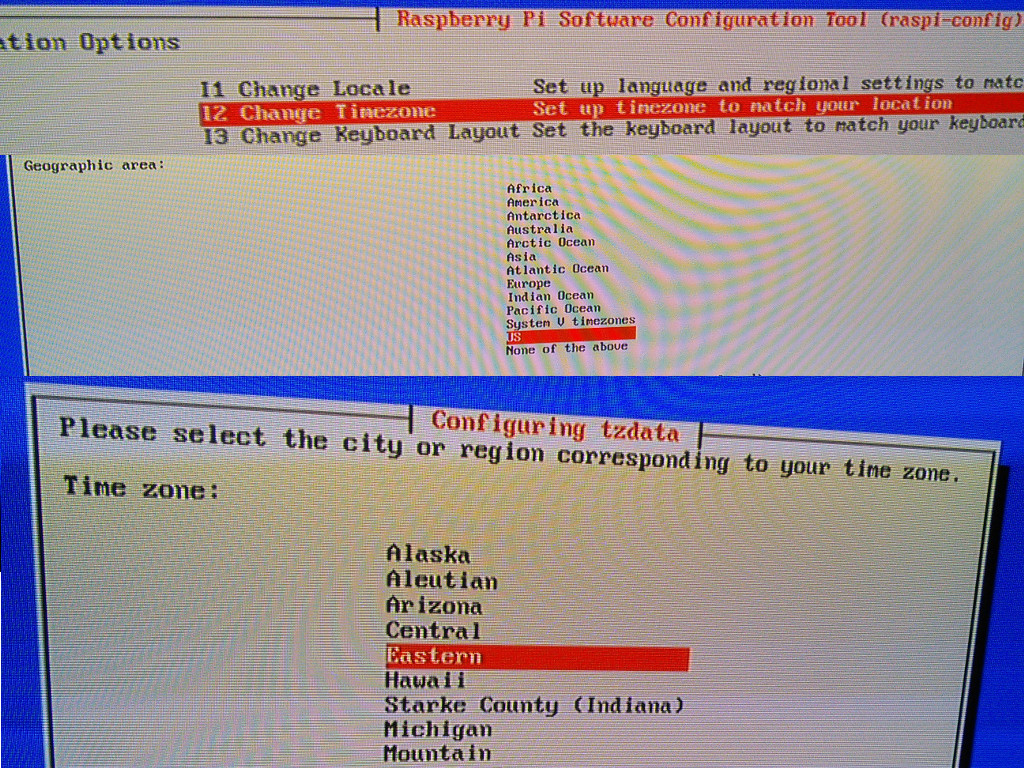
Next, I selected 4 Internationalisation Option, and then selected I2 Change Timezone.  It takes it a while to move to the next screen, so don’t press anything until the Geographic area screen is displayed.  I selected US, and then selected Eastern on the next screen.  There were some confirmation messages displayed at the bottom of the screen that the time zone had been changed, and then it transitioned back on the raspi-config main menu.

timezone

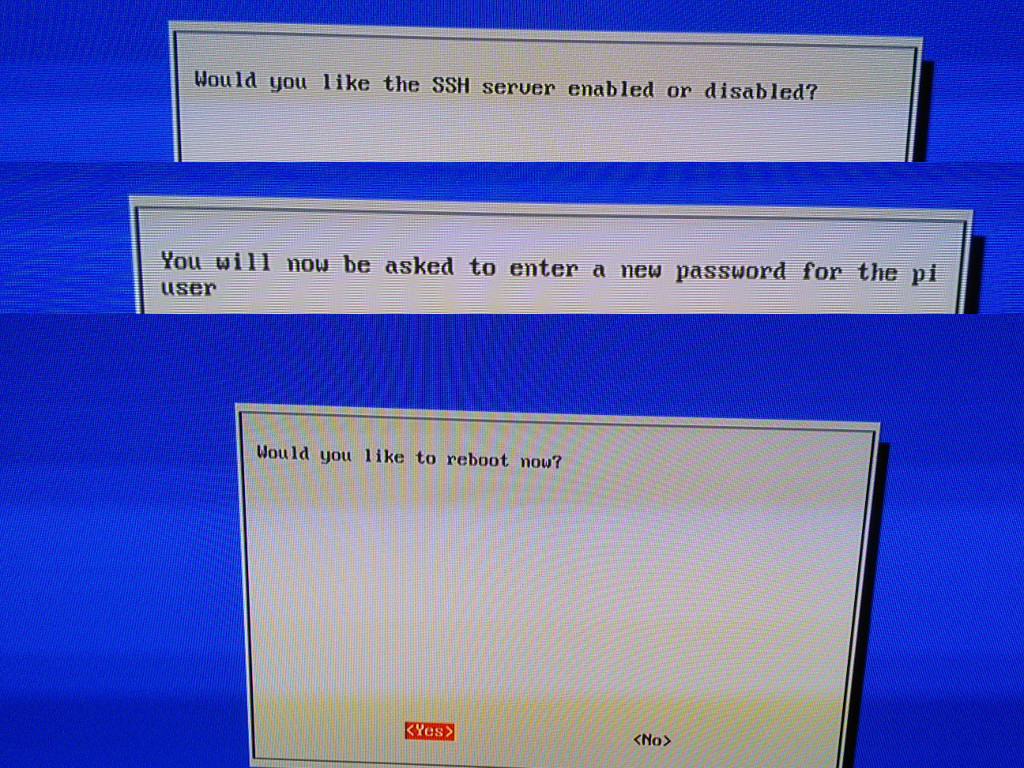
Then I selected A4 SSH and enabled the ssh server.  This allows administration of the Raspberry Pi over the network through ssh.  Finally, from the main menu I selected 2 to change the password.  It will display a prompt at the bottom of the screen, and the characters will not echo as the password is typed.  It will prompt you to confirm the password that was just entered.  Now from the main menu, the right key was pressed twice to select Finish.  It will prompt to reboot, which I confirmed.

ssh

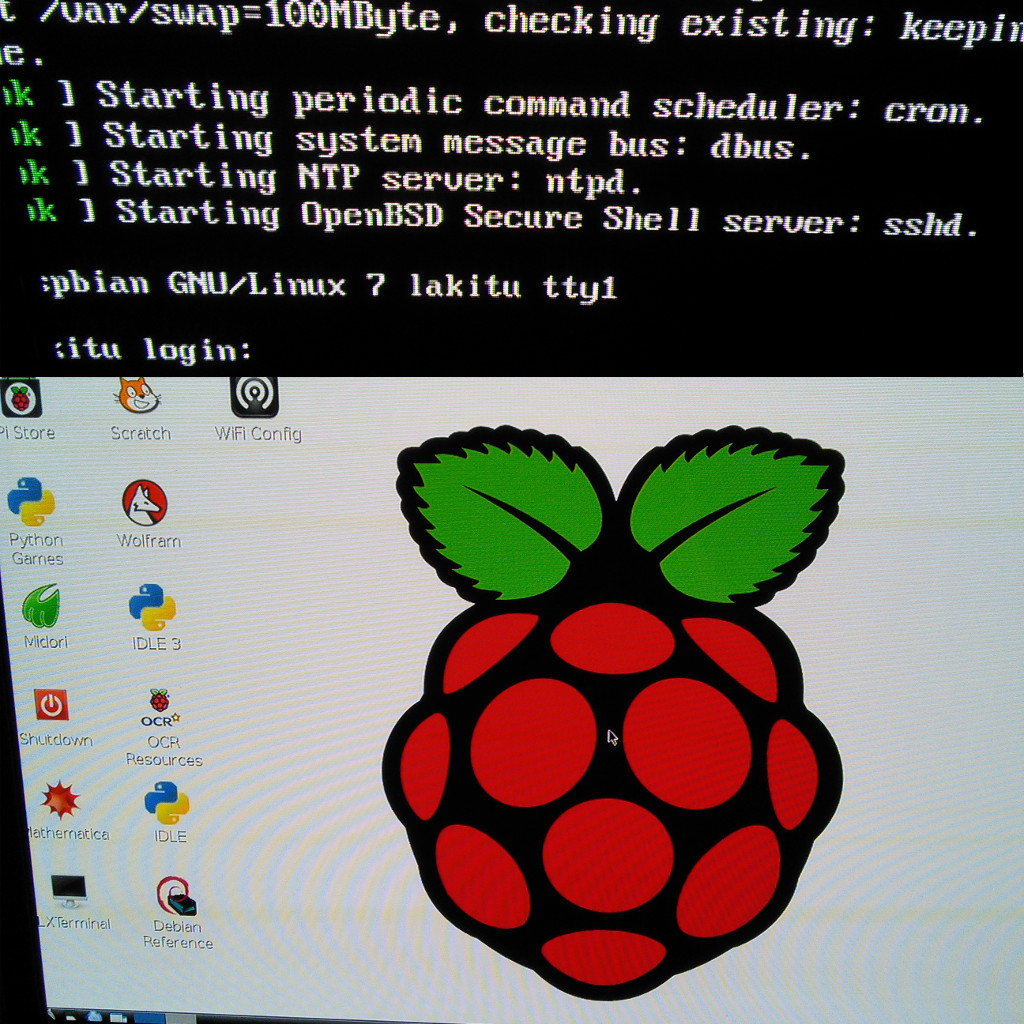
After restarting, the Raspberry Pi will display a command prompt to login.  If the login prompt is cutoff on the display, then run sudo raspi-config and change the option for overscan to enabled.  Once logged in, I ran the startx command to bring up the graphical desktop.

desktop

After the desktop was started, I connected a wired ethernet cable from my router to the Raspberry Pi to enable connectivity to the Internet.  Once the networking cable is connected, then additional green and yellow lights will illuminate on the Raspberry Pi.  I noticed that if the networking lights on the Raspberry Pi are not illuminated, then disconnecting and reconnecting the networking cable seems to solve the problem.  This sometimes happens after the Raspberry Pi is  powered off.  I did have a wireless networking USB adapter that I could have used instead of wired networking, but the Raspberry Pi only has two USB slots, which are currently used by the mouse and keyboard.

Raspberry Pi with Networking

Downloading the arcade software

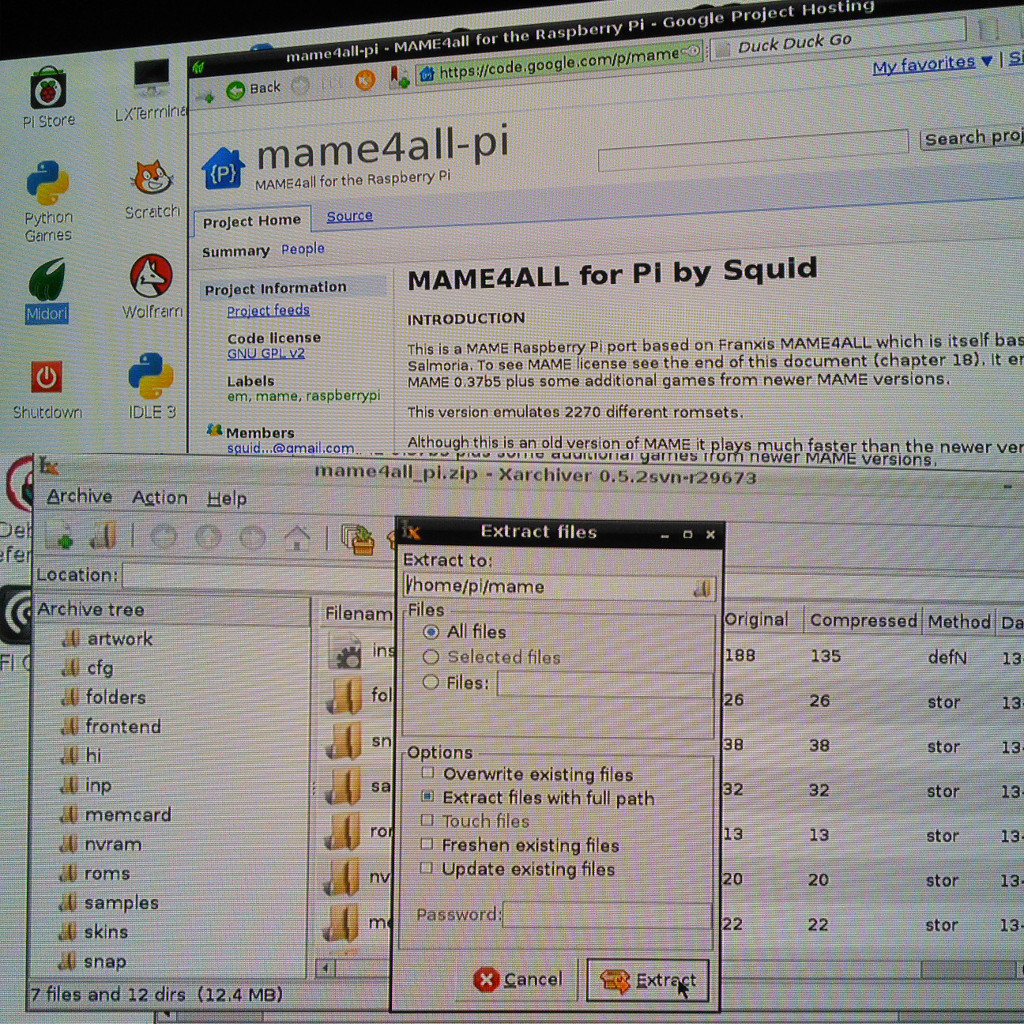
Now that I had a working desktop, I started the Midori web browser on the Raspbian desktop, and I downloaded MAME4all from the project page on the Google code webiste.  Then I downloaded the mame4all_pi.zip file using the Open option, and then I extracted the contents of the zip file to a folder called mame in my home directory.

mame4pi

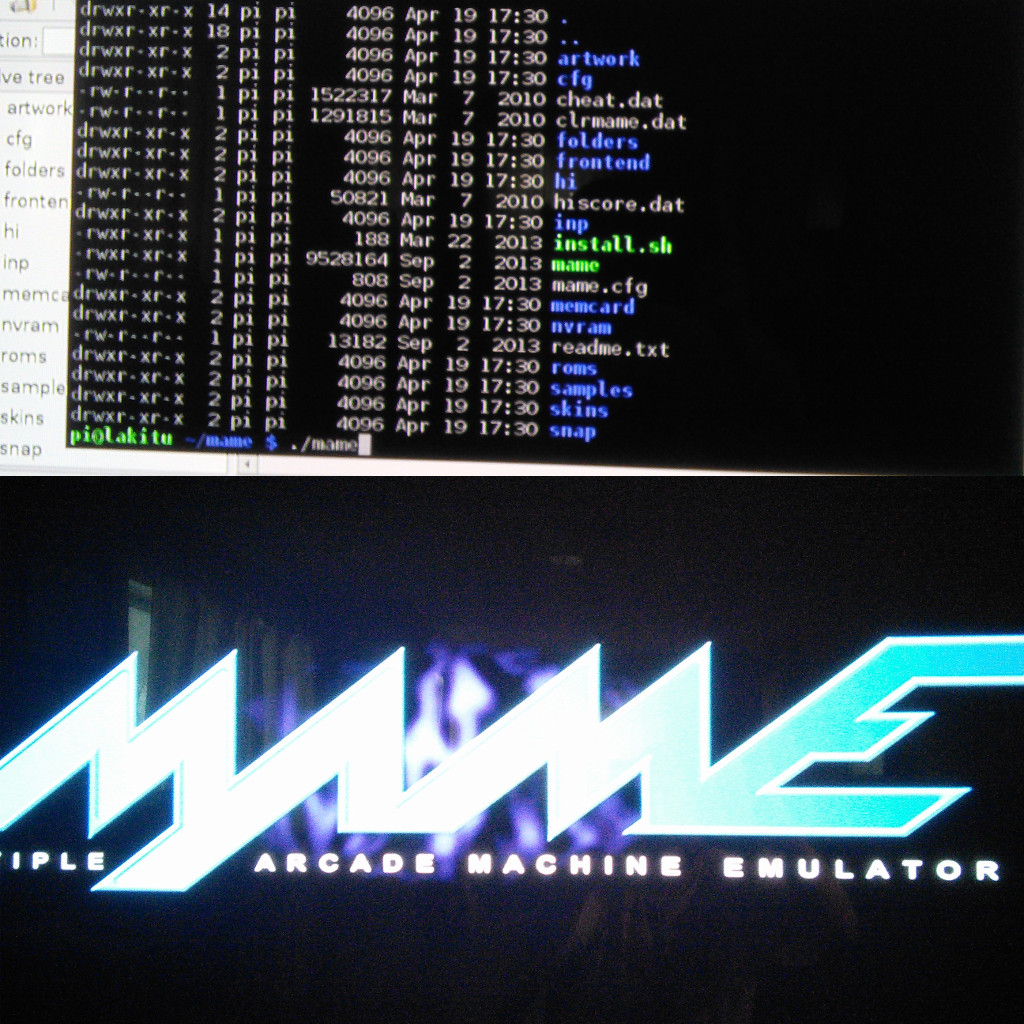
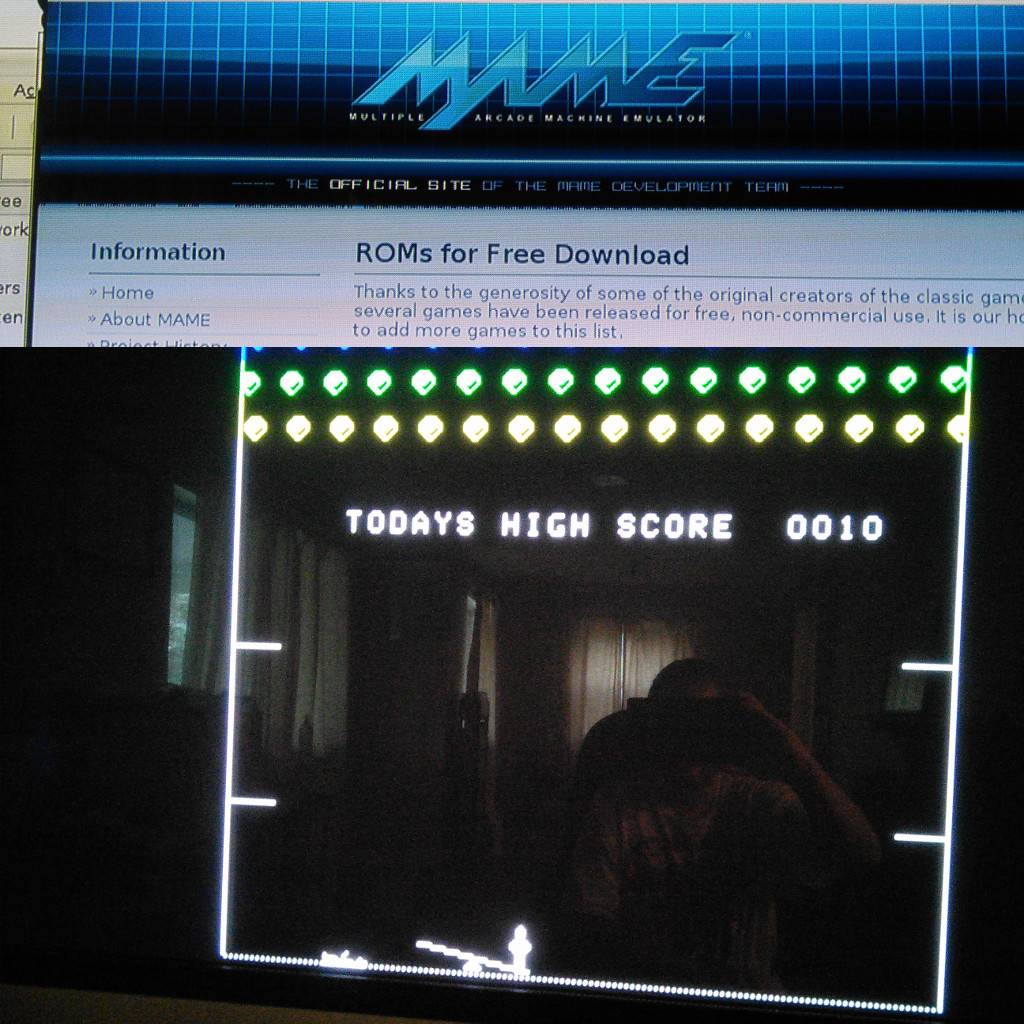
The mame executable should already be built, so after changing to the mame directory using LXTerminal, I just typed “./mame” and it successfully started.  Unfortunately, after the title screen displays, the main menu did not detect any ROMs.  I went to a site called mamedev.org/roms which had a collection of free and legal ROMS which can be used for testing.

mame_title

I just picked a game called Circus, confirmed that I am using it for non-commercial use, chose the Open option.  For some reason, whenever I tried Save As it would just create a file with 0 byte size.  After it opens in the Xarchiver, I extracted the contents to the ~/mame/roms folder.  All of the files must be extracted to the roms folder.  After the files were extracted, I ran the game by typing ./mame circus from the mame directory.  This successfully started the circus game.  For some reason, when I just ran ./mame the main menu still couldn’t find the game.

roms

The controls for mame games can be found on the mame4all-pi project page.  Pressing 5 on the keyboard adds credits.  After credits are added, pressing the 1 key will start a one player game.  The objective of this game is to use the left and right keys to move the see-saw to bounce the menu upward to collect the gems.  If one of the men misses the see-saw, then the player loses a life.  Mame has many other useful options from the command line, which can be displayed by running ./mame –help

Notes

Be sure to go into raspi-config and select 4) Internationalization options, select I3 Change Keyboard Layout, and set the keyboard to “Generic 101-key PC” and keyboard layout to “English (US)” format.  Otherwise, you will have a hard time typing symbols like pipe ( | ) and many keys like the “at” sign and double quotes will be out of place.

To get my Raspberry Pi to start mame on boot, I had to create an /etc/init.d/arcade script which runs my arcade.sh script.  I used this page as a guide.

My ~pi/arcade.sh script:

sudo mame/retrogame/Adafruit-Retrogame-master/retrogame &

mame/mame <rom image>

Remember to “chmod ugo+x” your script files.

Edit using “sudo vi /etc/init.d/arcade” otherwise you will not be able to save the file.